- 888-987-6558
- support@webelect.net

If you repeatedly set up the same Tags in multiple campaigns, you can copy your tag structure from one campaign to another and/or save the tag structure as a template file to reuse as needed.
Create Tag Template
First navigate to the existing campaign that has the Tags you'd like to base your template on to copy to other campaigns.
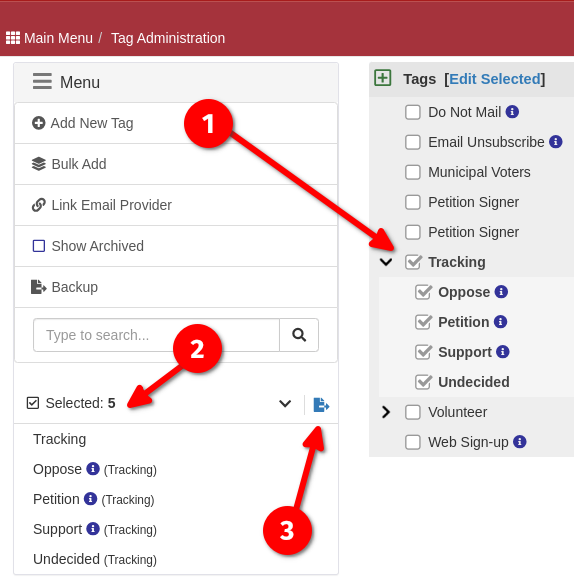
1) Select/check the Tags you would like to include.
2) Verify the selected tags are what you want.
3) Click the "Template" icon
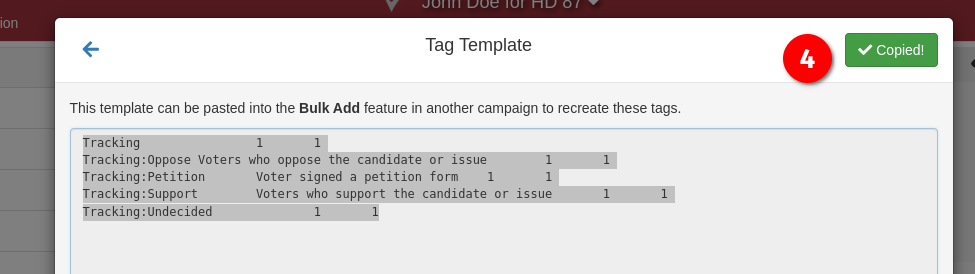
4) A window will open showing the template file for the selected Tags. Click the Copy button and the template will be copied to your clipboard. From this point you can either paste the template to a text editor and save the file for repeated use later, or you can switch to another campaign that you want to add the Tags to and proceed below.
Bulk Add Tags
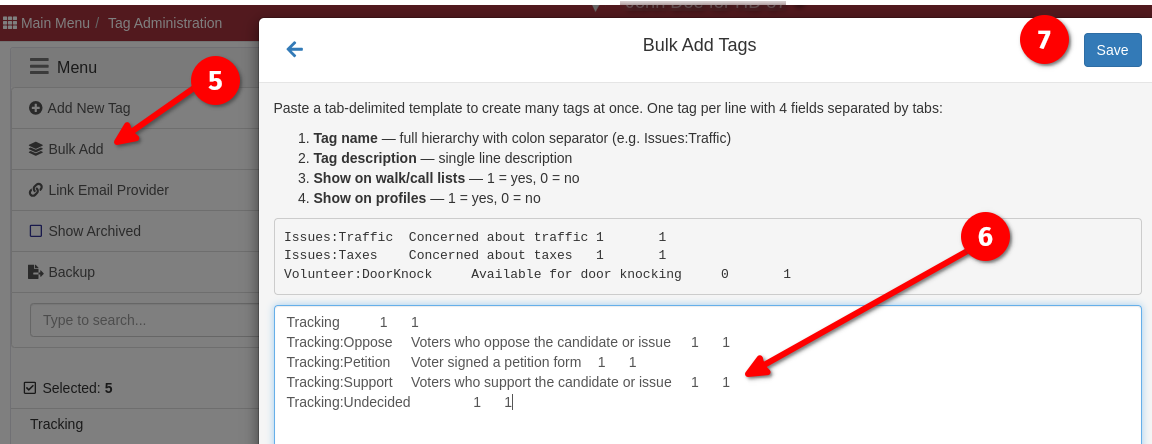
5) In the campaign that you want to add the tags to, go to the Administration-> Tags page and select the "Bulk Add" button.
6) Paste the copied tag template text into the window that displays.
7) Hit Save
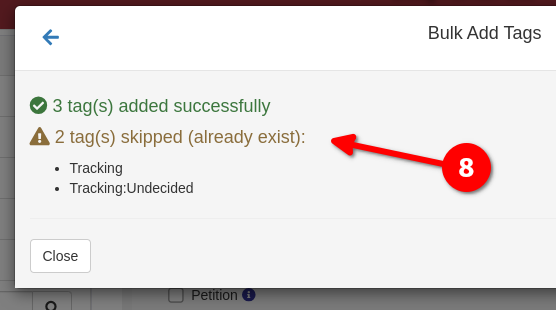
8) The window will update to show the results of the save. If the campaign already has any tag names in the template file, it will skip those and indicate in the results.
Last updated by Doug Homan, created March 16, 2026